Using Gradio and Netmiko to Interface to Linux Command Line
 Gradio - 2025-07-26
I will use Gradio to build the HTML interface, then use the Python library, 'NetMiko' to run commands remotely on a linux box via SSH. Then you can run Linux Command Lines from inside your Web Browser.
The Python Library 'Netmiko' makes the talking to the Linux Command Line possible from Python, and therefore Gradio, you can go check it out at GitHub - github.com/ktbyers/netmiko
Right now everything is hard coded in the python application but can be removed and seperated into some sort of user/password/key management using possible same, gradio/python and some sort of database like SQLite, since it's ready to be used this type of setup. First example in just 7 lines of code, 14 if you count the white space.
Here is a link to a screenshot of app1.py 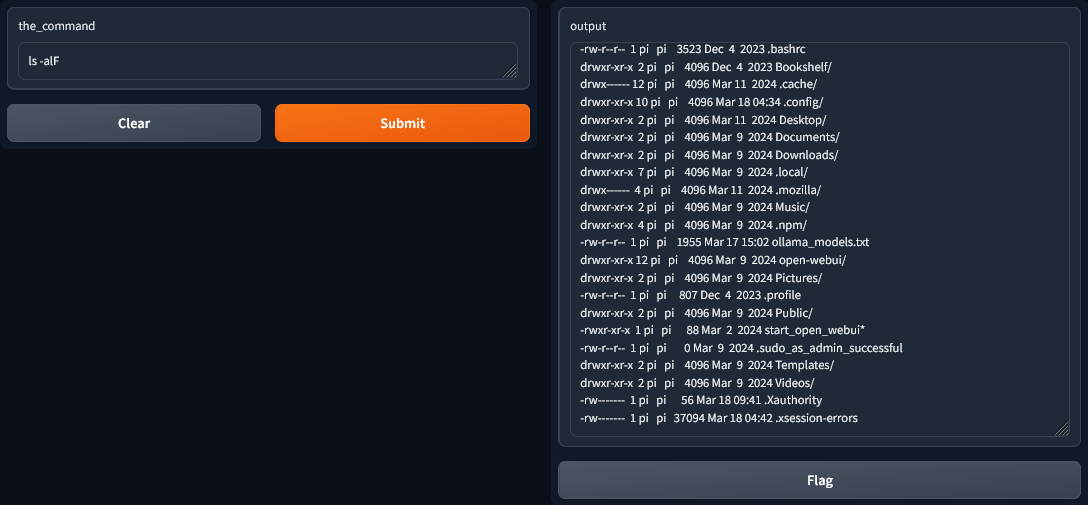
from netmiko import ConnectHandler
import gradio as gr

def run_command_line(the_command):
    with ConnectHandler(device_type="linux", host="192.168.1.2", username="user", password="password") as net_connect:
        return net_connect.send_command(the_command)

rs = gr.Interface(
    fn=run_command_line,
    inputs=["text"],
    outputs=["html"],
)

rs.launch()
First, Create a python virtual enviroment. Open a command prompt and somewhere, create a directory for your code to be in. A 'working directory' so to speak. I've decided to call it 'netmiko_testbed' So, we create a 'working directory' directory on the D: drive called 'netmiko_testbed'. Inside of that directory goes all your code and folders and any other files you use in your application. The virtual enviroment we decided to create, will be called 'netmiko-env'. And it will be a folder created by the python command (below), in your 'working directory'. Now, change (CD) to the directory 'D:\netmiko_testbed' Then create the virtual enviroment with the following command:
python -m venv D:\netmiko_testbed\netmiko-env
Now activate the virtual enviroment with the following command:
.\netmiko-env\Scripts\activate.bat
The command prompt changes
From:
D:\netmiko_testbed>
(netmiko-env) D:\netmiko_testbed>
ONLY with the virtual enviroment activated you can install NetMiko and Gradio, in that order. Make sure you have a good internet connection for downloading packages that are not in your PIP cache. Run the following 2 commands to install the python packages Netmiko and Gradio:
pip install netmiko
pip install gradio
After you have installed the packages, save a list of them to a text file with the python command (below), and on subesquent installations you may just use the 'requirements.txt' file to install all the packages in one shot. So, type in the following command:
pip freeze --local > requirements.txt
Now you can try the above NetMiko/Gradio example code. Copy, and save the above Netmiko/Gradio example at the top of this page, as 'app.py'. After you launch the application, you can access it via your web browser. Now, on the command line type the following command to launch the application:
python app.py
When you are all finished using the virtual enviroment. Deactivate it by typing in the following:
.\netmiko-env\Scripts\deactivate.bat
Here is another version, in about 20 lines, save as 'app2.py'. Layout is different on web page and the output is now under command line input area. This layout gives a wider view for the output.
Here is a link to a screenshot of app2.py 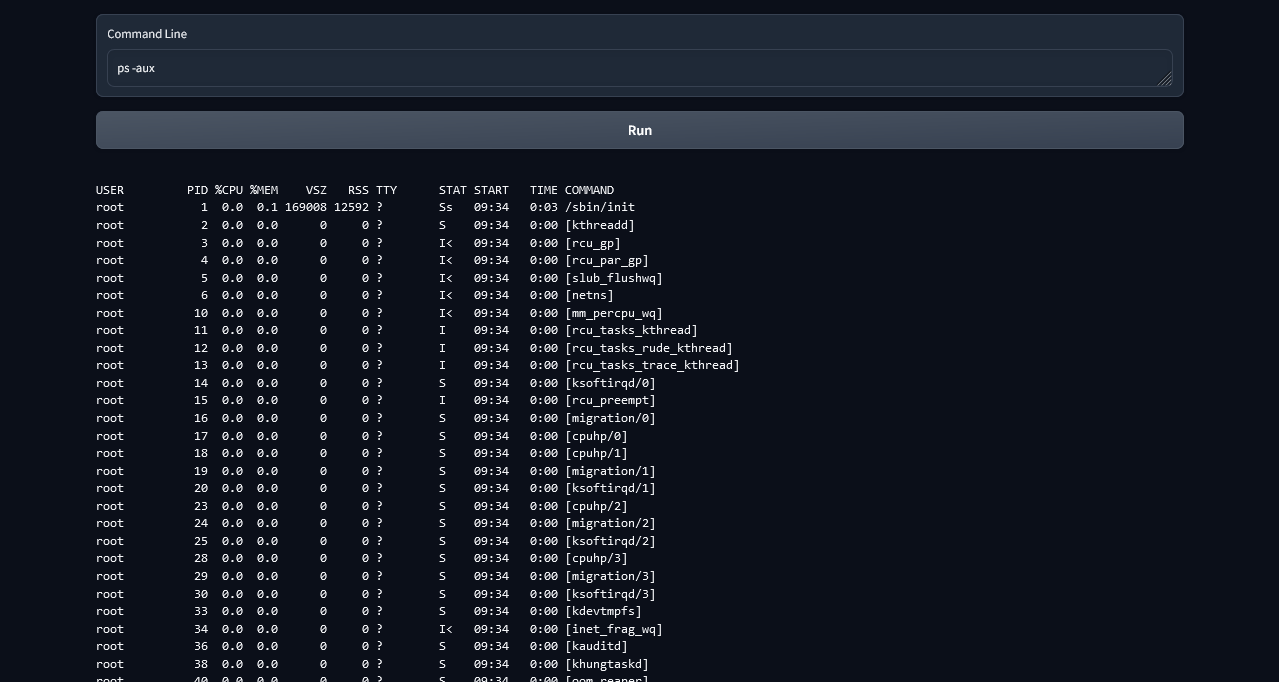
from netmiko import ConnectHandler
import gradio as gr

def run_command_line(the_command):
    with ConnectHandler(device_type="linux", host="192.168.1.2", username="user", password="password") as net_connect:
        myoutput = net_connect.send_command(the_command)
        return "<pre><code>" + myoutput + "</code></pre>"

with gr.Blocks() as rs:
    with gr.Row():
        with gr.Column():
            text1 = gr.Textbox(label="Command Line")
            run_btn = gr.Button("Run", interactive=True)
        with gr.Column(min_width="900"):
            html1 = gr.HTML()

    run_btn.click(fn=run_command_line, inputs=text1, outputs=html1)

    gr.on(
        triggers=[text1.submit, run_btn.click],
        fn=run_command_line,
        inputs=text1,
        outputs=html1,
    )

rs.launch()